
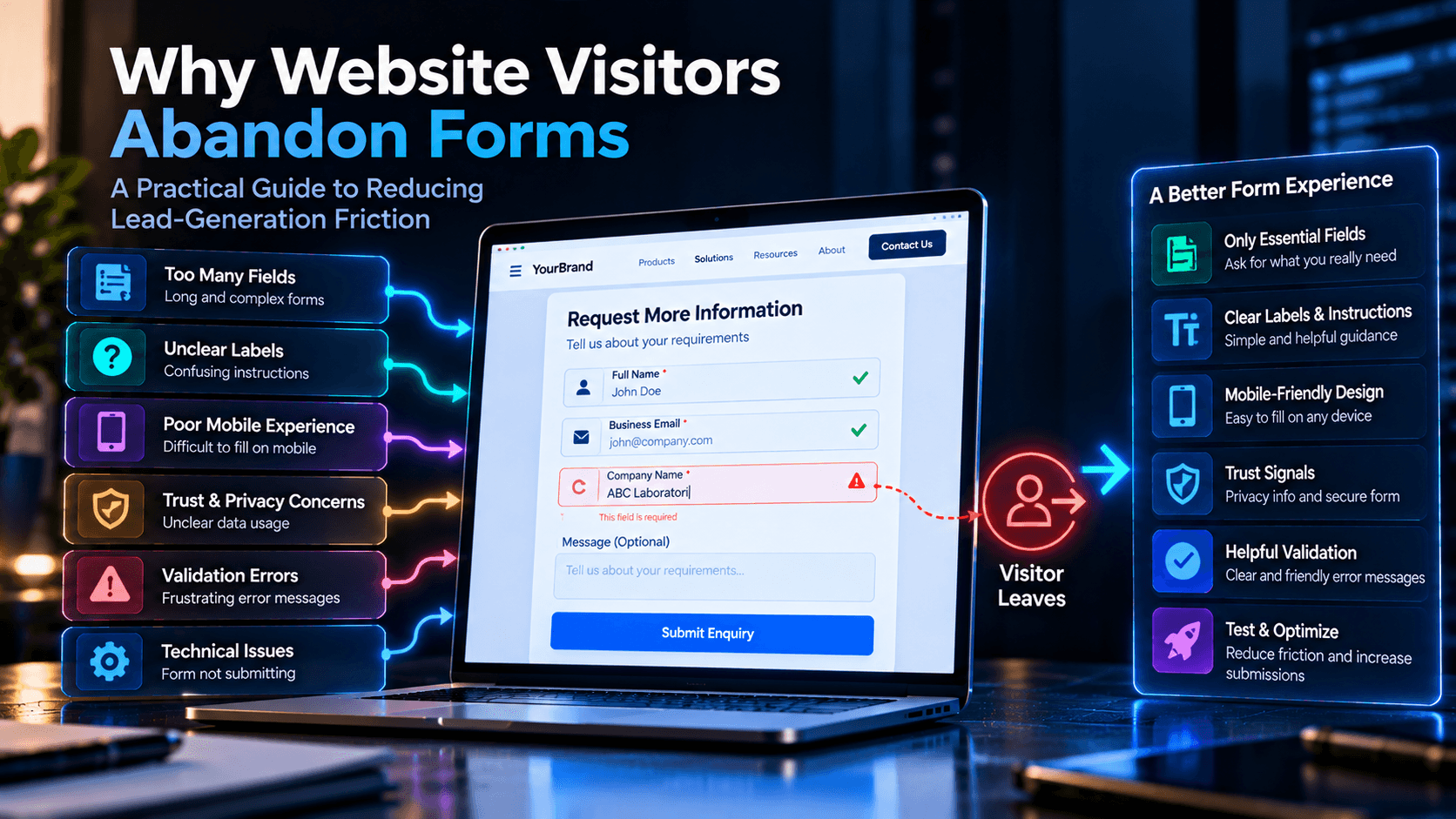
Why Website Visitors Abandon Forms: A Practical Guide to Reducing Lead-Generation Friction
Someone opened your contact form, started typing, and left. That isn't the same failure as someone who never looked at the form at all, and treating it that way is a big part of why generic form advice doesn't help. Here's what actually drives lead-generation form abandonment, and how to tell a real problem from an expected one.
Introduction
A visitor who opens your contact form, types their name and email, and then closes the tab didn't do the same thing as a visitor who scrolled past the form without a glance. The first one showed real intent and lost it somewhere along the way. The second one was never going to fill it out. Most advice about "reducing form abandonment" blurs these two groups together, which is part of why so much of that advice doesn't actually change anything.
Form abandonment, in the sense that matters for a lead-generation page, is specifically about the first group: people who started and didn't finish. Understanding why they left — and separating the genuinely fixable problems from the ones that aren't really about the form at all — is the difference between a useful audit and a guessing game.
What Is Form Abandonment?
Form abandonment is what happens when a visitor begins interacting with a form — focusing a field, typing something, opening a dropdown — but doesn't complete a successful submission. It's a distinct event from two other things it often gets confused with: a visitor who views a page containing a form but never engages with it at all, and a visitor who submits the form but hits a validation error partway through.
That distinction matters because each one has a different likely cause and a different fix. A visitor who never starts the form might be unconvinced by the offer on the page, not confused by the form itself. A visitor who starts and abandons is telling you something more specific: whatever happened between the first keystroke and the exit was enough to make finishing feel not worth it. A visitor who hits a validation error and gives up is a third case again — the form worked as designed, but the experience of correcting the error was bad enough to lose them anyway.
The standard way to quantify this is a simple ratio, provided both halves are defined consistently:
Form completion rate = Successful form submissions ÷ Form starts × 100
Form abandonment rate = (Form starts − Successful form submissions) ÷ Form starts × 100
Neither formula means anything if "form start" and "successful submission" aren't defined the same way every time they're measured — a point worth holding onto, because getting the measurement right turns out to be one of the more commonly skipped steps in this whole topic (more on that later in this guide).
Why Do Visitors Abandon Lead-Generation Forms?
There isn't one dominant cause, and businesses that go looking for a single silver-bullet fix usually end up disappointed. The W3C's Web Accessibility Initiative (WAI), which has published detailed, practitioner-facing guidance on form design for years, puts it plainly: if a form requests irrelevant or excessive data, users are more likely to abandon it. That's the most consistently cited structural cause, but it sits alongside several others that show up just as often in practice:
- Too many or unnecessary fields — asking for information the business doesn't actually need yet, or ever.
- Unclear labels and instructions — fields that don't explain what they want, or that rely on a placeholder hint that disappears the moment someone starts typing.
- Poor validation and error handling — generic errors, errors that appear too early, or errors that wipe out what the person already typed correctly.
- Mobile usability problems — small touch targets, a keyboard that covers the submit button, or input types that make typing harder than it needs to be.
- Trust and privacy hesitation — uncertainty about who's collecting the information, why, and what happens next.
- Technical failures — a form that silently fails to submit, a broken integration, or a confirmation message that never appears.
It's also worth saying directly: not every abandoned form is the form's fault. Traffic quality, how clearly the offer on the page matches what the visitor was looking for, and plain uncertainty about whether this is the right business to contact all affect whether someone finishes a form — and no amount of field-trimming or error-message polishing fixes a mismatch between what a page promises and what a visitor actually wanted. The sections below focus on the form-side factors that are genuinely within a business's control, while keeping that larger context in view.
How Too Many Form Fields Create Friction
There's no universally correct number of fields for a lead-generation form, and any guide that gives you one is guessing. The right number depends on what the form needs to accomplish and what the business is asking the visitor to trust it with before any relationship exists.
The more useful question isn't "how many fields" but "which fields earn their place at this exact moment." WAI's guidance on this is specific: ask users only for what's required to complete the process at hand — not everything that might eventually be useful for sales or marketing. A field that would help qualify a lead later isn't automatically a field that belongs on the first form a stranger fills out.
Different form types genuinely need different information at first contact, and treating them identically is itself a source of friction:
| Form type | Purpose | Potentially necessary at first contact | Information that may be collected later |
|---|---|---|---|
| Contact form | General enquiry | Name, email, message | Company, role, phone, budget |
| B2B enquiry | Business enquiry | Name, business email, company, enquiry type | Team size, requirements, timeline |
| Demo request | Arrange a product demonstration | Name, business email, company, availability | Role, team size, tools, budget |
| Quote request | Request a service/product quote | Contact details, requested service or product, scope | Detailed specifications and supporting documents |
| Consultation form | Qualify a prospective client | Name, email, business type, main goal | Budget, decision timeline, detailed requirements |
| Wholesale enquiry | Assess a business purchase enquiry | Business name, contact details, product interest | Shipping, volume, resale and documentation details |
Treat this table as a starting point for thinking about field selection, not a template to copy as-is — your own form's right answer depends on your actual sales process and what you genuinely can't move forward without.
A practical way to apply this: for every field on the form, ask whether submission is actually blocked without it right now, or whether it's there because it would be convenient to have eventually. Fields in the second category are candidates to make optional, move to a later step, or cut outright — not because shorter is automatically better, but because every field that doesn't need to be there yet is pure friction with no offsetting benefit.
How to Improve Form Labels, Instructions, and Field Clarity
A field someone doesn't understand produces the same result as a field that's genuinely too much to ask: the person stops. The difference is that confusing labels are usually free to fix.
Use visible, persistent labels — not placeholder text as the only instruction. This is one of the more specific, evidence-backed recommendations in this whole topic. Nielsen Norman Group's research on placeholder text identifies three concrete problems: placeholder hints disappear from short-term memory once someone starts typing and forgets exactly what was asked; some users read a placeholder as a pre-filled value and skip the field, thinking it's already answered; and when an error occurs on a field with no visible label, the person has to click back into the field just to remember what it wanted, before they can even start fixing it. A label that stays visible above or beside the field avoids all three problems at once.
Keep helper text outside the input, not inside it as a placeholder. If a field needs formatting guidance — a phone number format, a required file type — that instruction should be visible text near the field, not something that vanishes the moment someone starts typing.
Indicate required fields clearly, and don't rely on color alone. The most robust approach, per accessibility guidance, is including the word "required" directly in or near the label, since a color-only or symbol-only indicator (a red asterisk, for instance) can be missed by people with low vision and often isn't announced at all by screen readers. If most fields on the form are required, it can be simpler to state that plainly once and mark only the optional fields.
Group related fields logically. Fields that belong together conceptually — name and email, or address components — should be visually grouped, which reduces the sense that the form is a long, undifferentiated list.
Make the submit button say what it does. "Submit" tells a visitor nothing about what happens next. "Request a Quote," "Book a Demo," or "Send Enquiry" confirms the action actually matches what they came to do — a small thing, but one of the few form elements a visitor reads right before deciding whether to commit.
How Form Validation and Error Messages Affect Completion
Validation exists to help someone fix a genuine mistake before it becomes a bigger problem. Done badly, it becomes the reason they leave instead.
Client-side validation checks input in the browser, giving immediate feedback without a round trip to the server — useful for catching an obviously malformed email address or a required field left blank before submission is even attempted. Server-side validation is not optional alongside it: client-side checks can be bypassed entirely, so anything the business actually depends on for security or data integrity needs to be verified again on the server, regardless of what the browser already checked.
Timing matters more than most teams expect. A common and well-documented mistake is validating a field the instant someone starts typing, flagging an "error" before they've even finished — which research on reducing cognitive load describes as a genuinely hostile pattern that interrupts people with premature criticism. The better default is to wait until someone has finished with a field and moved on before showing any error, reserving real-time feedback for the specific cases where it actually helps, like a password-requirements checklist that updates as someone types, or a check that prevents a mistake that would otherwise be costly to undo.
A useful error message does four specific things, per established accessibility guidance: it identifies which field the error belongs to; it explains, in plain language, what's actually wrong; it tells the person how to fix it; and it preserves everything they'd already entered correctly elsewhere in the form. It also needs to be visible without relying on color alone, and accessible to people using a keyboard or screen reader rather than a mouse — which in practice means the error text needs to actually be read by assistive technology when it appears, not just styled to look alarming.
A quick before-and-after (illustrative example):
*Confusing:* "Invalid input." *Improved:* "Please enter your phone number using 10 digits, with no letters or symbols (for example, 5551234567)."
*Confusing:* A red border around a field with no visible text at all. *Improved:* "Email address — please check the format; it looks like the '@' symbol might be missing."
The improved versions aren't longer for the sake of being thorough — they're specific enough that the person doesn't have to guess what the form actually wants from them.
How to Improve Mobile Form Usability
A form that works cleanly on a desktop screen can quietly fall apart on a phone, and mobile traffic is often where a meaningful share of lead-form visits actually happen. A few specific, testable things make the difference:
- Appropriately sized touch targets. Buttons and input fields that are easy to tap accurately on a small screen, with enough spacing that a visitor doesn't accidentally hit the wrong control.
- The right HTML input type for the job. An email field, phone field, and date field should each trigger the matching mobile keyboard layout, rather than forcing someone to hunt for the "@" symbol on a general keyboard.
- A keyboard that doesn't obscure the active field or the submit button. This is a genuinely common failure: the on-screen keyboard pops up and covers exactly the thing the person needs to see next.
- Dropdowns that are actually easier than typing. A long dropdown list can be more awkward on mobile than a simple text input — use a dropdown when the options genuinely constrain the answer usefully, not by default.
- Autofill-compatible field names, so a returning visitor's browser can fill in standard fields like name, email, and address without friction.
- Preserved input after a validation error or an accidental navigation away, rather than forcing someone to retype everything from scratch.
- A clear loading and confirmation state, so a tap on "Submit" visibly registers and the visitor isn't left wondering whether anything happened — which is also what prevents someone from tapping submit three times and generating duplicate entries.
What a marketer can reasonably check: the visible layout, label readability, whether errors are visible on a small screen, and basic tap behavior, by actually opening the form on a real phone. What usually needs a developer: the underlying input types, JavaScript behavior, autofill compatibility, and anything related to how the keyboard interacts with the page layout. Testing in a desktop browser's mobile preview mode is a reasonable first pass, but it doesn't substitute for opening the form on an actual device — emulators don't always reproduce real keyboard behavior or touch sizing accurately.
How Trust and Privacy Affect Form Completion
Some abandonment happens before any usability problem ever comes into play — a visitor simply isn't sure the form is worth the information it's asking for. That hesitation is harder to diagnose than a confusing label, but it's just as real.
A lead form earns more trust when it's clear about a short list of things: who's actually collecting the information, why a specific field is needed (especially anything that feels sensitive or unusually detailed for a first contact), what happens immediately after submission, and roughly when and how someone will follow up. None of that requires heavy legal language — a sentence near the submit button explaining the next step does more work than a buried privacy-policy link that nobody reads before submitting.
Consent deserves its own care. Where consent is being collected — for marketing communications, for instance — it should be a clear, separate choice from the act of submitting the form itself, not bundled in as an unavoidable condition of getting a response. It's worth being direct about a limitation here: including a privacy-policy link doesn't automatically make a form legally compliant, and privacy obligations can vary by what data is collected and which jurisdictions are involved. This guide isn't a substitute for an actual legal review of what a specific form collects and how — treat the design recommendations here as good practice, not a compliance guarantee.
Single-Step vs. Multi-Step Forms: Which Should You Use?
Splitting a form across multiple steps can genuinely help — breaking a long or logically distinct set of questions into digestible pieces, and letting progressive disclosure hide fields that only become relevant based on an earlier answer. It can also genuinely hurt, by turning a short, simple enquiry into a multi-click ordeal that adds effort without adding clarity.
There's no rule that says multi-step forms perform better, and treating that as a default assumption is a common mistake. The decision is really about whether splitting the form reduces the cognitive load of looking at everything at once, or whether it just adds extra taps for a form that was never long enough to need the split in the first place. A short contact form with three fields rarely benefits from being broken into steps. A detailed B2B qualification form with distinct sections — contact info, then business details, then specific requirements — might.
A few genuinely useful questions when deciding: Does splitting the form actually make it easier to understand, or just longer to finish? Would a progress indicator meaningfully help, or would it just remind people how many steps are left? Could conditional logic remove entire fields for most visitors, rather than just hiding them behind a click? And, most importantly — can you actually test this against your own form-start and completion data, rather than assuming the answer from general advice? The honest answer for most businesses is that this is a testable decision specific to their own form, not something a generic recommendation can settle in advance.
How to Measure Form Abandonment and Completion in GA4
This is the part of form optimization that gets skipped most often, and it's also where a lot of the earlier advice in this guide becomes actionable instead of theoretical — because none of it works without knowing where visitors are actually dropping off.
A single "form submitted" event tells you almost nothing on its own. A useful measurement setup distinguishes several separate moments in the journey:
- Form view — the visitor saw a page containing the form. This doesn't prove any intent to use it.
- Form start — the visitor began interacting with the form (commonly defined as the first field focus or first keystroke). This needs a consistent definition, because "started" can mean different things depending on how it's implemented.
- Field interaction — engagement with a specific field, useful for spotting exactly where people hesitate, but something to track carefully if it would involve capturing personal data unnecessarily.
- Validation error — the visitor hit an error. Worth tracking by type and field where privacy allows, since a spike of errors on one specific field is one of the clearest, most actionable signals this whole topic produces.
- Submission attempt — the visitor tried to submit, which may include attempts that failed.
- Successful submission — the form was actually submitted successfully. This has to be measured as a distinct event from a button click; a click on "Submit" that triggers a broken request and never actually reaches the server is not a successful submission, even though it looks identical from the front end.
- Qualified lead — someone on the sales or marketing side has actually assessed the submission as a plausible fit, which requires CRM data, not just analytics.
- Sales opportunity — the qualified lead has progressed further in an active sales process, also requiring CRM-side data.
GA4 can automatically collect two useful form-interaction events through Enhanced Measurement, when Form interactions are enabled for the website's data stream:
- `form_start` records the first time a visitor interacts with a form during a session.
- `form_submit` records when a visitor submits a form.
These events provide a useful starting point for understanding form interactions, but they should not automatically be treated as proof that a lead was successfully processed by the website or received by the CRM. `form_submit` reflects that a submit action happened, not that the data went anywhere afterward — a failed integration or a broken request can still fire it. Some custom or JavaScript-driven forms may not be detected as expected by Enhanced Measurement's automatic detection, since it relies on recognizing standard form elements and submit behavior. In those situations, a developer or analytics specialist may need to implement additional tracking through Google Tag Manager or a custom event.
For reliable lead-generation measurement, distinguish a submission attempt from a confirmed successful submission. GA4's recommended `generate_lead` event can be used when a lead has actually been generated, such as after a successful form submission — and, per Google's own guidance, in the lead-generation measurement category specifically, when someone "submits a form online or submits information offline," supporting a full lead-funnel view across both digital and offline activity that feeds Google Analytics' lead-acquisition reporting. Unlike `form_start` and `form_submit`, `generate_lead` isn't collected automatically — it has to be deliberately implemented and tied to a genuinely confirmed outcome, not just a button click. Field interactions and validation errors also aren't covered by Enhanced Measurement and need their own custom implementation if you want to track them. Always test the implementation against real form submissions before relying on the resulting figures.
Using consistently defined events over the same measurement period, the two core calculations are:
Form completion rate = Successful form submissions ÷ Form starts × 100
Form abandonment rate = (Form starts − Successful form submissions) ÷ Form starts × 100
It's worth distinguishing these clearly from a few metrics they often get confused with: a landing-page conversion rate measures the whole page's performance, not just the form; a lead-qualification rate measures how many submissions turn out to be a good fit, which is a sales judgment, not a form-usability metric; and a lead-to-opportunity rate is further downstream again. A form can have an excellent completion rate and still produce weak leads, if the offer attracts the wrong audience or sets the wrong expectations.
Illustrative measurement table (hypothetical example — not Belk Digital client data):
| Metric | Value |
|---|---|
| Form views | 1,000 |
| Form starts | 600 |
| Validation errors | 180 |
| Submission attempts | 420 |
| Successful submissions | 360 |
| Qualified leads | 120 |
| Form completion rate | 60% |
| Form abandonment rate | 40% |
| Qualified-lead rate from submissions | 33.3% |
The useful takeaway from a table like this isn't any single number — it's the pattern across rows. A 60% completion rate looks solid in isolation, but if only a third of those successful submissions turn into qualified leads, the form might be completing fine while attracting the wrong audience, or the sales team's definition of "qualified" might not match what the form is actually capturing. Completion rate and lead quality are two different questions, and a form audit that only looks at the first one is missing half the picture.
Lead-Generation Form Audit Checklist
Form purpose and field selection
- (Unchecked) Is the form's purpose immediately clear to a new visitor?
- (Unchecked) Does every field serve a genuine purpose at this stage?
- (Unchecked) Can any field be made optional, removed, or deferred to a later step?
- (Unchecked) Are required and optional fields clearly distinguished?
- (Unchecked) Is the amount of information requested proportionate to what's being offered?
Design and usability
- (Unchecked) Does every field have a visible, persistent label?
- (Unchecked) Is helper text placed outside the input, not relying on a placeholder?
- (Unchecked) Are related fields grouped logically?
- (Unchecked) Is the submit button's text specific to the actual action?
- (Unchecked) Can the form be scanned and understood quickly?
Validation and feedback
- (Unchecked) Are errors linked clearly to the specific field they concern?
- (Unchecked) Do error messages explain what went wrong, in plain language?
- (Unchecked) Do they explain exactly how to fix the issue?
- (Unchecked) Is already-entered valid data preserved after an error?
- (Unchecked) Are errors accessible to keyboard and screen-reader users, not color-only?
Mobile usability and accessibility
- (Unchecked) Does the form work cleanly on common mobile screen sizes?
- (Unchecked) Are touch targets and spacing appropriate for a thumb, not a cursor?
- (Unchecked) Do input types match the expected data (email, phone, date)?
- (Unchecked) Does the on-screen keyboard avoid covering the active field or submit button?
- (Unchecked) Can the form be completed using a keyboard or assistive technology alone?
Analytics and technical implementation
- (Unchecked) Are form starts and successful submissions measured as distinct events?
- (Unchecked) Is "successful submission" verified independently of a button click?
- (Unchecked) Are duplicate submission events being prevented?
- (Unchecked) Are failed submissions and integration errors actually being investigated?
- (Unchecked) Are completion-rate figures compared against qualified-lead data, not read alone?
The first four groups are things a marketer or business owner can usually check directly, by sitting down with the live form. The last group — and parts of mobile usability involving input types or JavaScript behavior — typically needs a developer or analytics specialist to confirm properly.
Conclusion
Form abandonment isn't one problem with one fix — it's a handful of separate, mostly fixable frictions (too many fields, unclear instructions, bad validation timing, mobile friction, unresolved trust questions) stacked on top of each other, plus a measurement gap that often hides which of them is actually doing the damage. Fixing the form without fixing the measurement just means you won't know whether anything you changed actually worked.
This guide connects to a broader set of UX and conversion principles covered in how strategic UI/UX design increases conversions and retention — this article stays specifically at the form level, where a lot of that broader thinking gets tested in the most literal way possible: does the visitor actually finish, or not.
If you'd rather have someone else run that audit, Belk Digital's website design and development team can help you find out exactly where visitors are dropping off in your lead forms and what to do about it — without promising a specific conversion-rate number before the audit's actually done.
Frequently Asked Questions
Need Expert Help with This?
If you’re looking to implement these strategies for your business, our team can help you plan, build, and scale with confidence.
ContactReady to Transform Your Digital Presence?
Let's discuss how we can help you achieve your digital goals and create an exceptional online presence.